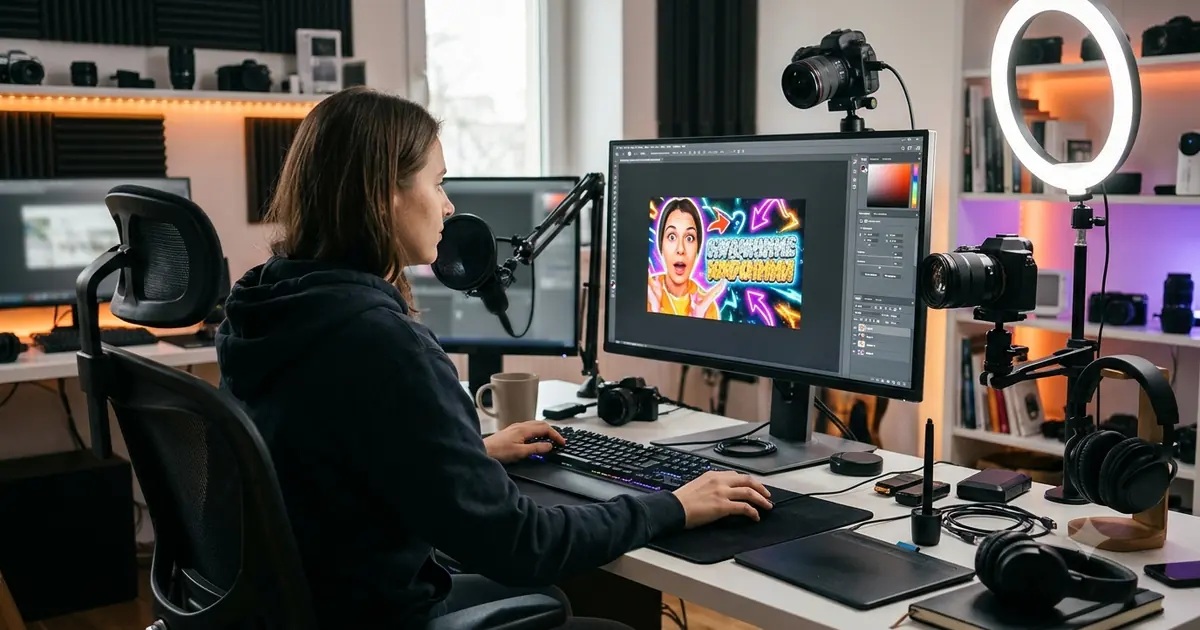
Quick Answer — YouTube Thumbnail Size
The recommended YouTube thumbnail size is 1280 x 720 pixels with a 16:9 aspect ratio. The minimum width is 640 pixels, the file should be under 2 MB, and common formats are JPG, PNG and GIF. For YouTube Shorts, use a vertical 1080 x 1920 (9:16) image where you can set a Shorts thumbnail. Keep text and faces inside a safe area and away from the bottom-right corner, where the video length appears.
1. YouTube Thumbnail Size and Dimensions
If you only remember one thing: design your thumbnail at 1280 x 720 pixels. This size is sharp on large screens and matches the 16:9 player. YouTube states a minimum width of 640 pixels, but smaller images can look soft when scaled.
Figure 1: The recommended YouTube thumbnail: 1280 x 720 pixels, 16:9, under 2 MB.
| Spec | Recommended | Notes |
|---|---|---|
| Dimensions | 1280 x 720 px | Often written as 1280x720 or 720p |
| Minimum width | 640 px | Larger is better for sharpness |
| Aspect ratio | 16:9 | Matches the YouTube player |
| File size | Under 2 MB | Compress if larger |
| Formats | JPG, PNG, GIF | Some sources also list BMP |
2. Aspect Ratio
The standard YouTube thumbnail aspect ratio is 16:9. If your image has a different ratio, YouTube may crop it or add bars, so crop to 16:9 yourself for full control. Vertical content for Shorts uses 9:16.
Figure 2: Common aspect ratios, drawn in proportion.
3. File Size and Format Limits
- Keep it under 2 MB. This is YouTube's stated guidance for custom thumbnails.
- JPG gives small files for photos. PNG keeps text and graphics crisp but can be larger.
- Avoid heavy compression that adds blocky artefacts around text.
- Do not upscale a small image to 1280 x 720. Start from a large original.
Need to shrink a file? An image compressor reduces size with little visible change. See also our guide to reverse image search for checking where an image comes from before you reuse it.
4. Shorts Thumbnail Size
YouTube Shorts are vertical, so the recommended image is 1080 x 1920 pixels (9:16). In the past you could not upload a custom Shorts thumbnail and had to pick a frame, but newer options let many creators change the thumbnail from YouTube Studio or the app. Availability varies by account, so check the options you see.
- Make the first frame or chosen frame clear and attractive.
- Keep key content in the centre, away from interface overlays.
- Use large text that is readable on a phone.
5. Safe Zones and Legibility
Figure 3: Keep key elements inside the safe area and clear of the timestamp.
Figure 4: Thumbnails appear at many sizes, so test readability at the smallest.
- Few words: three to five large words work better than a sentence.
- High contrast: light text on dark or the reverse.
- One focal point: a clear face or object, not clutter.
- Check on mobile: view the thumbnail small before publishing.
6. Interactive Tools
Thumbnail checker
Crop to 16:9 calculator
Platform size finder
7. How to Prepare and Upload
Figure 5: From design to testing: five steps.
- Create your design at 1280 x 720 pixels.
- Keep key items inside the safe area.
- Export as JPG or PNG under 2 MB.
- Upload in YouTube Studio: open Content, choose the video and use the thumbnail upload option.
- Test how it looks on mobile and track its click-through rate over time.
Custom thumbnails may need verification
YouTube may ask you to verify your channel before you can upload custom thumbnails. Menu names and limits can change, so follow the current instructions in YouTube Studio.
8. Other Platform Sizes
| Platform / format | Common size | Ratio |
|---|---|---|
| YouTube video thumbnail | 1280 x 720 px | 16:9 |
| YouTube Shorts thumbnail | 1080 x 1920 px | 9:16 |
| Instagram feed post | 1080 x 1350 px | 4:5 |
| Instagram Reel cover | 1080 x 1920 px | 9:16 |
| Facebook link preview | 1200 x 630 px | 1.91:1 |
These are common recommendations, not fixed rules. Check each platform for its current guidance.
9. Common Mistakes
- Uploading an image below 1280 x 720 and letting YouTube enlarge it.
- Using a 4:3 or square image and losing parts to cropping.
- Putting text near the bottom-right corner under the timestamp.
- Using small, thin text that disappears on mobile.
- Exporting too small or too compressed, causing blurry text.
- Not testing the thumbnail at small size.
Quick Summary
| Item | Recommendation |
|---|---|
| Video thumbnail | 1280 x 720 px, 16:9 |
| Minimum width | 640 px |
| File size and format | Under 2 MB; JPG, PNG or GIF |
| Shorts | Vertical 1080 x 1920 (9:16), where supported |
| Design | Safe area, big text, clear focal point |
About These Specs
Specifications reflect YouTube guidance at the time of writing and can change. Confirm the latest limits on YouTube Help or inside YouTube Studio. The checkers give guidance only.
Frequently Asked Questions (FAQ)
The recommended YouTube thumbnail size is 1280 x 720 pixels with a 16:9 aspect ratio. YouTube lists a minimum width of 640 pixels, and the image file should be under 2 MB in a format such as JPG, PNG or GIF.
The standard aspect ratio is 16:9, which matches the video player. Thumbnails with a different ratio may be cropped or shown with bars, so design in 16:9 for regular videos.
YouTube's guidance is that a custom thumbnail should be under 2 MB. If your image is larger, export it as a JPG with moderate quality or compress it before uploading. Limits can change, so check YouTube Studio for the latest rule.
YouTube accepts common image formats such as JPG, PNG and GIF, and some sources also list BMP. JPG usually gives the smallest file size for photos, while PNG is better for sharp text and graphics.
Shorts are vertical, so the recommended size is 1080 x 1920 pixels with a 9:16 aspect ratio. Many creators can now choose a Short's thumbnail frame or upload an image in YouTube Studio, but options vary by account and device, so check what your app shows.
The minimum width is 640 pixels, but 1280 x 720 is recommended for sharp display on large screens. Using the recommended size avoids blurry thumbnails when YouTube scales the image.
Common causes are low resolution, heavy JPG compression, upscaling a small image or tiny text. Create the thumbnail at 1280 x 720, use high-quality export settings within the file size limit and keep text large and simple.
In YouTube Studio, open Content, choose the video, and use the thumbnail upload option on the video details page. You may need a verified channel for custom thumbnails. The exact menu names can change over time.
YouTube may require your channel to be verified before you can upload custom thumbnails, and the file must meet the size, format and policy requirements. If the option is missing, check your channel status in YouTube Studio.
Keep text and faces in a safe area away from the edges and away from the bottom-right corner, where YouTube shows the video length. Use few words in large, high-contrast letters so they stay readable at small sizes.
Sizes differ by platform. As a common guide, Instagram feed posts often use 1080 x 1350 pixels (4:5), Reels and Stories use 1080 x 1920 (9:16), and square posts use 1080 x 1080. Always check the platform's current guidance.
YouTube offers a thumbnail testing feature in YouTube Studio for eligible channels that lets you compare versions of a thumbnail. Availability can vary, so look for it in the thumbnail section of your video details.